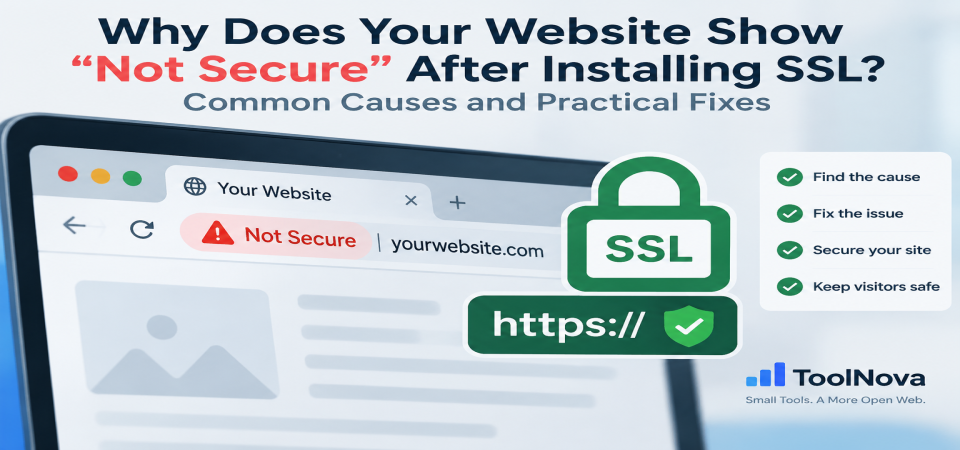
Why Does Your Website Show "Not Secure" After Installing SSL? Common Causes and Practical Fixes
Installing an SSL certificate is one of the first steps every website owner takes to protect visitors and enable HTTPS. However, many people are surprised when their website still shows a "Not Secure" warning even after the SSL certificate appears to be active.
This situation is more common than many website owners expect. The reason is simple: installing an SSL certificate and having a fully configured HTTPS website are not exactly the same thing.
An SSL certificate provides encrypted communication between the visitor's browser and your server, but it does not automatically fix old links, redirect settings, website files, or server configurations.
In this guide, we will explain the most common reasons why your website may still appear insecure after installing SSL and how to fix each problem.
What Does an SSL Certificate Actually Do?
An SSL certificate allows a secure connection between a browser and a website server.
When HTTPS is enabled, information exchanged between the visitor and your website — such as login details, contact forms, and other data — is encrypted during transmission.
However, an SSL certificate does not:
- Change old HTTP links inside your website
- Update images or scripts automatically
- Configure all redirects
- Fix DNS problems
- Repair incorrect server settings
Think of SSL as the security layer for communication. Your website configuration still needs to be adjusted so everything works correctly over HTTPS.
SSL Installed vs. HTTPS Properly Configured
A website can have a valid SSL certificate and still have HTTPS problems.
A complete HTTPS setup requires several elements working together:
- A valid SSL certificate installed on the correct server
- All website resources loading through HTTPS
- Proper HTTP-to-HTTPS redirects
- Correct DNS configuration
- A complete certificate chain
- All domain versions properly covered
If one of these elements is missing, browsers may display security warnings.
Common Reasons Your Website Still Shows "Not Secure"
1. Mixed Content Problems
What happens?
Your main page loads using HTTPS, but some elements still use HTTP.
These elements may include:
- Images
- CSS files
- JavaScript files
- Fonts
- Embedded videos
- External resources
For example:
http://example.com/image.jpginstead of:
https://example.com/image.jpgEven though the main page is secure, browsers consider the page partially unsafe because some resources are not encrypted.
How to fix it
Open your browser developer tools:
- Right-click your website
- Select "Inspect"
- Open the Console tab
- Reload the page
The browser will show the insecure resources causing the problem.
Common solutions:
- Replace old HTTP links with HTTPS
- Update website database URLs
- Replace external resources that do not support HTTPS
For large websites, a search-and-replace process may be needed to update old URLs.
2. Incorrect HTTP to HTTPS Redirects
A properly configured website should automatically redirect visitors from:
http://yourwebsite.comto:
https://yourwebsite.comwithout creating duplicate versions of your pages.
Common redirect problems:
- Some pages still open with HTTP
- Redirect loops occur
- www and non-www versions behave differently
- CDN and server redirects conflict
How to fix it
Check your redirect configuration.
Depending on your setup, the redirect may exist in:
-
Apache
.htaccess - Nginx configuration
- Hosting control panel
- CDN settings
- Website plugins
Avoid creating multiple redirect rules that compete with each other.
3. Expired SSL Certificate
SSL certificates do not last forever.
When a certificate expires, browsers may display messages such as:
- Your connection is not private
- NET::ERR_CERT_DATE_INVALID
How to fix it
Check:
- Certificate expiration date
- Renewal status
- Whether the renewed certificate is installed on the active server
Many websites fail because the certificate was renewed but never applied correctly.
4. Certificate Does Not Match the Domain
A certificate is issued for specific domain names.
For example, a certificate created for:
example.commay not automatically cover:
www.example.comor:
shop.example.comHow to fix it
Make sure your certificate includes all versions of your domain that visitors may use.
Many modern certificates support multiple domains through SAN certificates, allowing several versions to be protected with one certificate.
5. Missing Intermediate Certificates
Sometimes the main certificate is installed correctly, but the certificate chain is incomplete.
This can cause problems where:
- The website works in one browser
- Another browser shows a security warning
- Some mobile devices cannot verify the certificate
How to fix it
Install the complete certificate chain provided by your certificate authority.
This usually includes:
- Main certificate
- Intermediate certificate bundle
- Trusted chain information
6. Browser Cache or Old Security Information
After fixing SSL problems, some visitors may still see warnings.
This happens because browsers store security information locally.
Try these solutions:
- Open the website in private/incognito mode
- Clear browser cache
- Perform a hard refresh:
Windows:
Ctrl + Shift + RMac:
Cmd + Shift + RIf the website works correctly in another browser, the issue may only be cached data.
7. DNS or Hosting Configuration Problems
Sometimes SSL is installed correctly, but the domain points to another server.
This commonly happens after:
- Website migration
- Hosting changes
- CDN setup
- Server replacement
A visitor may reach a server that does not have the correct SSL certificate.
How to fix it
Check that:
- DNS records point to the correct server
- The SSL certificate exists on that server
- CDN SSL settings match your hosting configuration
Both the CDN and the original server may need valid certificates depending on your setup.
How to Check If Your SSL Certificate Is Working Correctly
Instead of relying only on the browser lock icon, check the certificate details directly.
You should verify:
- Certificate status
- Expiration date
- Issuer information
- Covered domain names
- HTTPS availability
ToolNova provides an SSL Checker that helps website owners quickly review certificate information and identify common HTTPS issues:
SSL Checker:
https://chefnova.biz/tool/ssl-checker
Regular checking is useful because many SSL problems appear suddenly after expiration or configuration changes.
Does SSL Affect Google Rankings?
HTTPS is one of Google's confirmed ranking signals.
However, SSL alone does not guarantee better rankings. Search engines evaluate many factors, including:
- Content quality
- Website performance
- User experience
- Technical SEO
A website with HTTPS problems may also lose visitors because security warnings reduce trust.
A properly configured HTTPS setup helps create a safer experience for users and provides a stronger technical foundation for SEO.
Frequently Asked Questions
Why does my website say "Not Secure" after installing SSL?
Usually because the SSL certificate is only one part of HTTPS configuration. The problem may come from mixed content, incorrect redirects, certificate issues, or DNS configuration.
Does installing SSL automatically fix HTTPS?
No. SSL enables secure communication, but you may still need to update website links, redirects, and server settings.
How long does SSL activation take?
Many certificates activate within minutes or hours. However, DNS changes, validation problems, or server configuration can delay the process.
How can I check my SSL certificate?
You can check certificate details through your browser or use an SSL checking tool to verify expiration dates, issuer information, and domain coverage.
Can SSL problems affect SEO?
HTTPS itself is a ranking signal, but SSL problems mainly affect SEO indirectly by reducing visitor trust and creating technical issues.
Final Thoughts
Seeing a "Not Secure" warning after installing SSL does not always mean the certificate failed.
In most cases, the certificate is working, but another part of the website configuration needs attention.
By checking mixed content, redirects, certificates, DNS settings, and browser cache, you can usually identify and fix HTTPS problems quickly.
A secure website is not only about installing SSL — it is about making sure every part of your website works correctly over HTTPS.
Internal linking suggestions for future ToolNova articles:
- DNS problems article → link to DNS Lookup
- Website downtime article → link to Website Status Checker
- Google indexing article → link to Google Index Checker
- Meta tags article → link to Meta Tags Checker